Which app tells you which
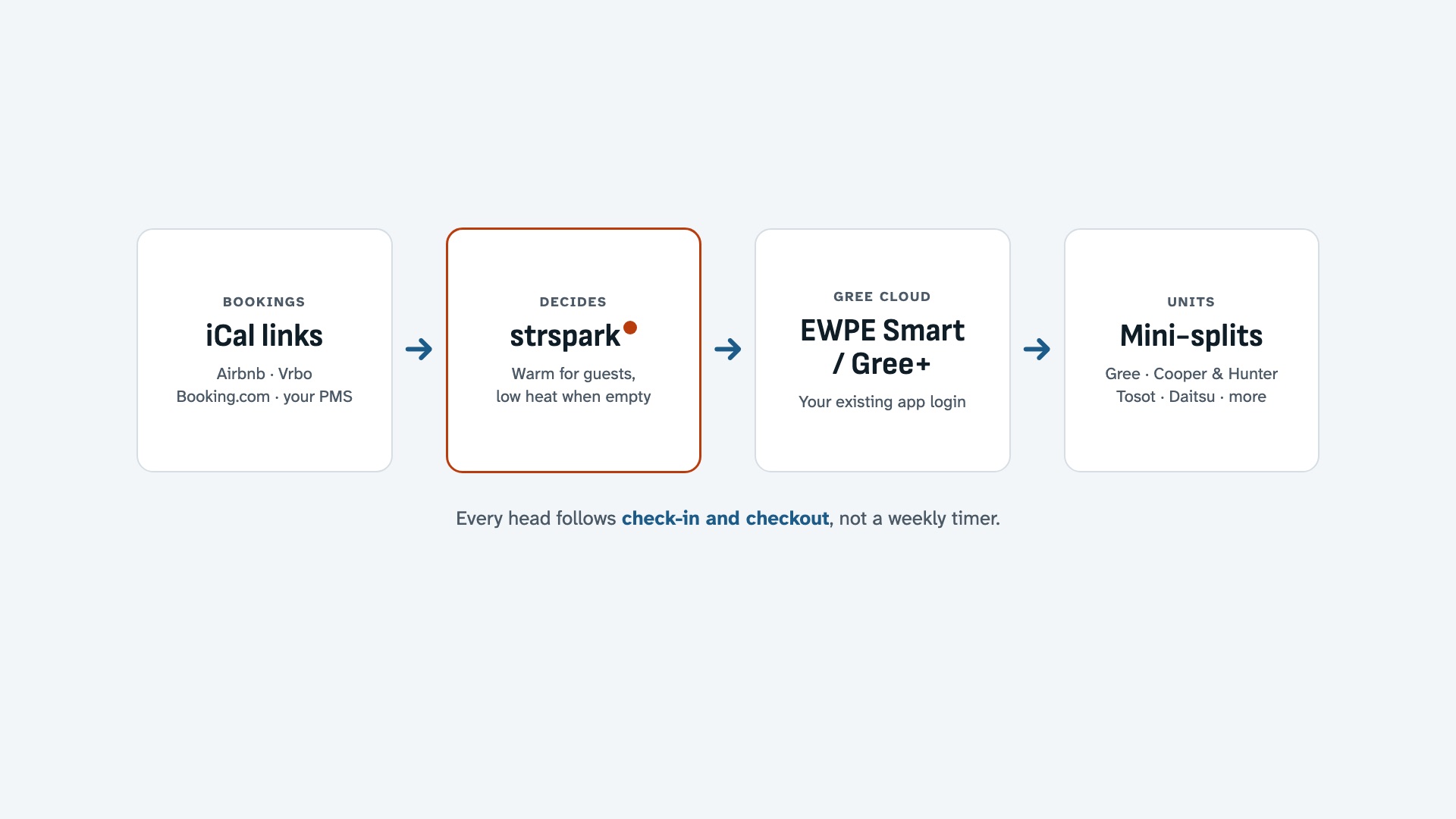
Cooper & Hunter sells mini-splits built by two different manufacturers, and each kind uses its own app and cloud. The app you set your units up in is the answer:
| Your units are in | Built by | Connect with |
|---|---|---|
| Cooper&Hunter Remote (with a C&H Wi-Fi kit) | Midea | Cooper & Hunter, this guide |
| EWPE Smart or Gree+ | Gree | EWPE Smart / Gree+, its own guide |
If you have both kinds in one house, connect both accounts. If your units are in another app, such as Cooper&Hunter Smart, STR Spark can't connect to it yet: tell us which units you have.
What you need
- Cooper & Hunter mini-splits on Wi-Fi in the Cooper&Hunter Remote app. If you can change a head's temperature in the app, STR Spark can too.
- The email and password from the Cooper&Hunter Remote app.
- An STR Spark account with your property in it. Start a free trial, then import your Hospitable properties or Hostaway listings, or add a property with its iCal calendar link.
1. Add your Cooper & Hunter account
Turn off any schedules or timers in the Cooper&Hunter Remote app first: they would fight STR Spark's settings.
Sign in to STR Spark. Choose Integrations in the menu on the left, press Add device account and choose Cooper & Hunter. Enter the email and password from the Cooper&Hunter Remote app, then press Connect and find devices. Finding your heads can take a minute: each one answers through the cloud in about 10 seconds.
Cooper & Hunter doesn't offer an official connection, so this one is marked beta: STR Spark connects the same way the app does. It works today, but it can stop if the app changes. If it does, your units are left as they are, and the account on Integrations shows what went wrong.
2. Link each head and turn it on
Open Devices. Each head is listed under Cooper & Hunter, Not linked and not enabled. In the Property column, pick the property it's in. Then choose its name to open its page and pick a preset:
| Frugal | Default | Comfy | |
|---|---|---|---|
| Ready before check-in | 2 hours | 5 hours | 8 hours |
| Temperature for guests | 69°F | 71°F | 72°F |
| Guests can choose between | 64–74°F | 66–76°F | 66–78°F |
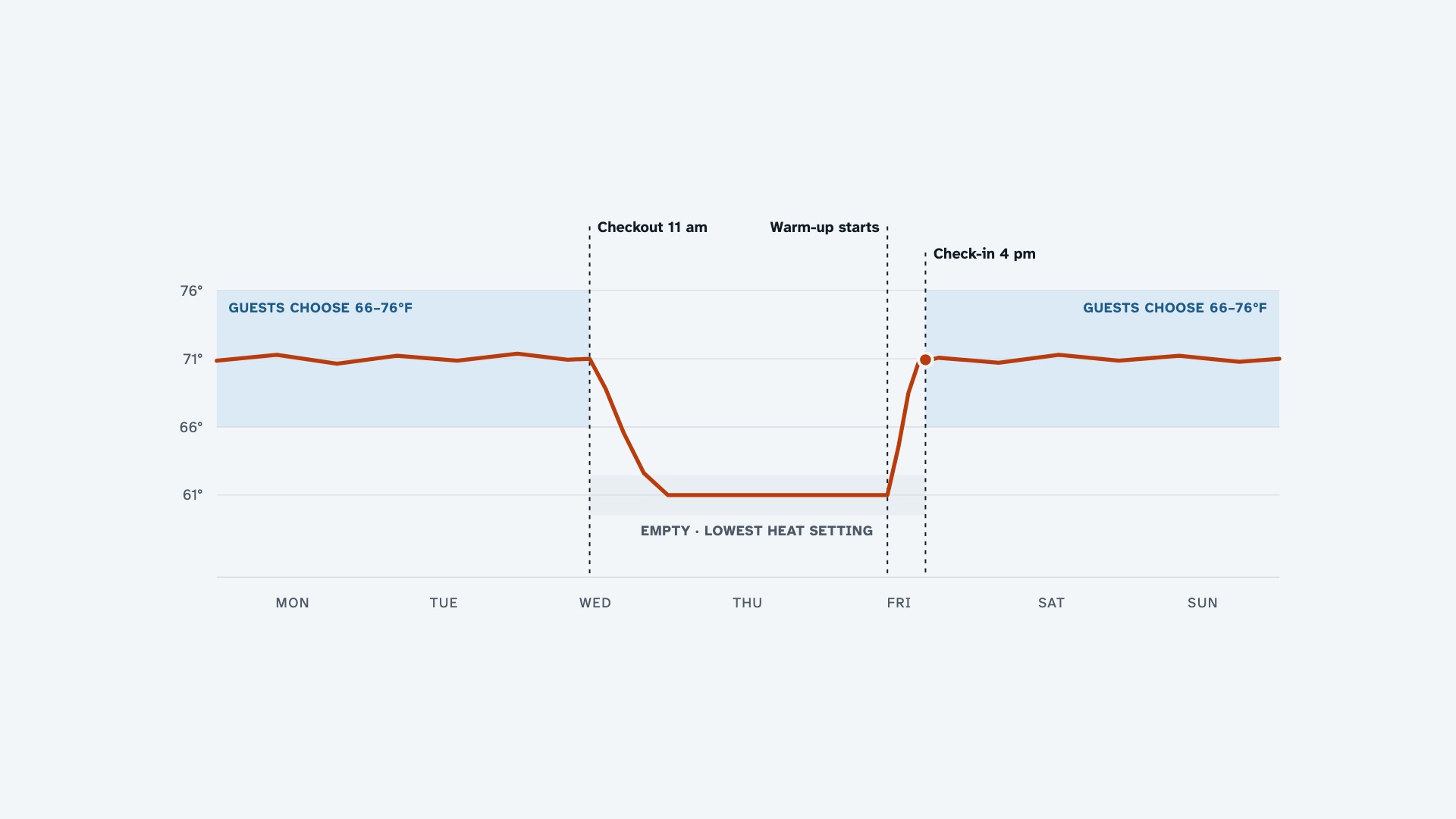
| While the property is empty | Heat at 62.6°F | Heat at 62.6°F | Heat at 62.6°F |
Or choose Custom and set your own. Switch Enabled on and press Save settings. Press Test on the head's page any time to see what STR Spark would do right now, without changing anything.
What STR Spark does with each head:
- While guests stay, it runs in auto, so it heats or cools as the room needs. A guest's temperature is kept while it's within your range. A head a guest switched off stays off.
- While the property is empty, it heats at 62.6°F, the lowest these units accept. Heat mode never cools, so an empty house isn't air-conditioned all summer.
For more on why, read How to control mini-splits between guests.
If something goes wrong
- "That didn't work" when connecting. Check the email and password sign in to the Cooper&Hunter Remote app, then try again. If your units are in EWPE Smart or Gree+, use that connection instead.
- A head is missing. Make sure it's on the same Cooper&Hunter Remote account, then press Refresh on the account in Integrations.
- A head shows as offline. Its Wi-Fi kit has lost the network. Check it in the Cooper&Hunter Remote app.
- The account shows Reconnect. You may have changed your password. Press Reconnect and enter the new one.
Still stuck? Email us or book a call.