What you need
- A Hostaway account where you can open Settings. On a team account, the account owner or an admin usually can.
- An STR Spark account. Start a free trial with Google, or with an email address and password. Your first 3 months are free, and you can cancel anytime.
1. Open "Add properties" in STR Spark
Sign in to STR Spark and choose Properties in the menu on the left. Press Add properties at the top of the page.
STR Spark opens Integrations with your three choices: Hospitable, Hostaway and iCal calendar. Choose Hostaway.
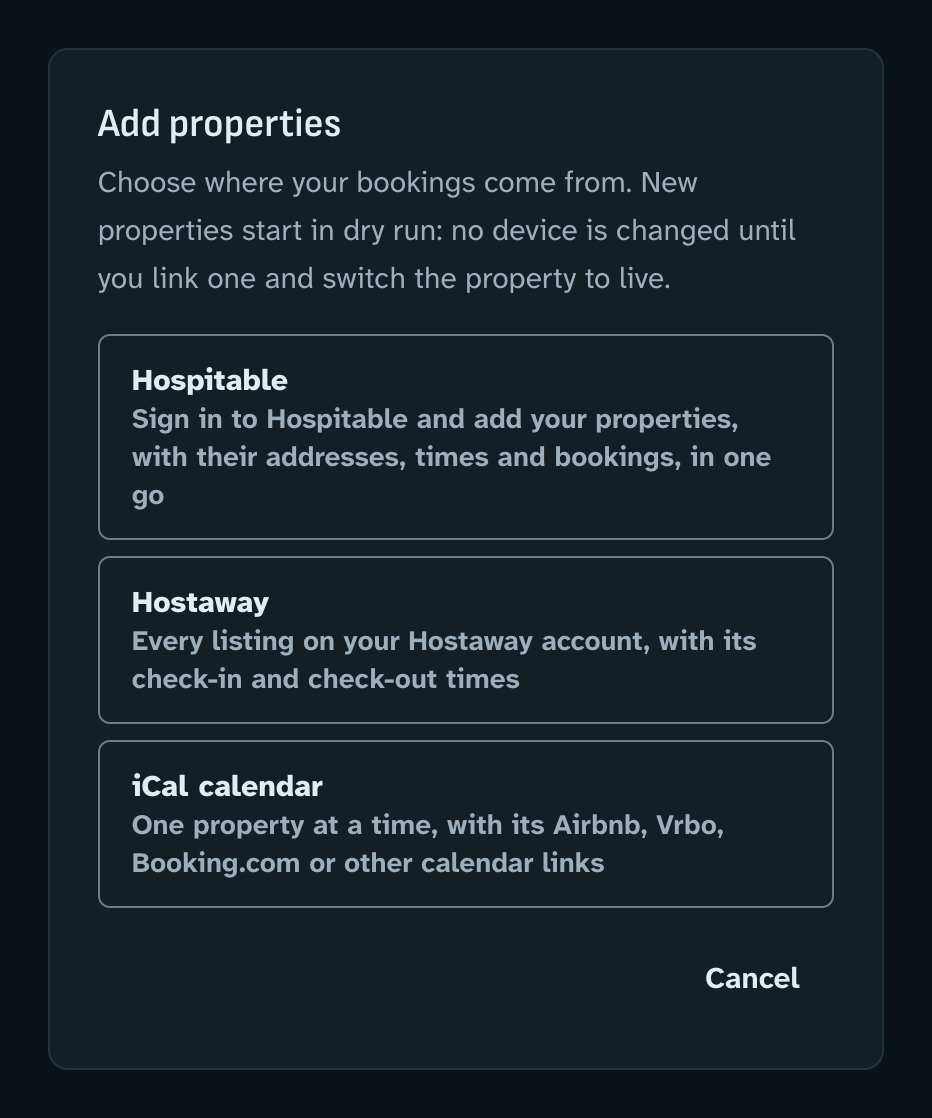
The Connect Hostaway form lists the steps below, with a link that opens Hostaway in a new tab.
2. Create an API key in Hostaway
Keep STR Spark open in its tab, and sign in to Hostaway in another.
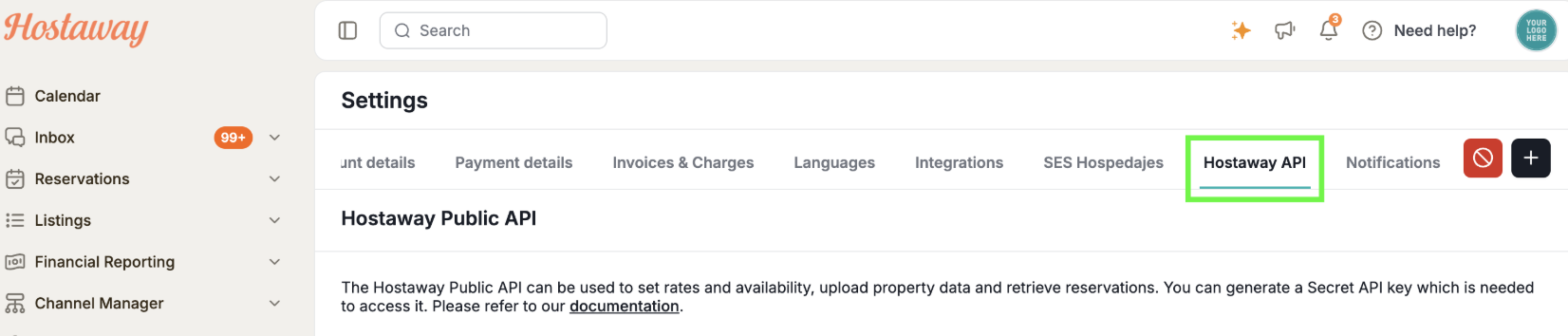
Open the Hostaway API settings. Go to Settings and choose the Hostaway API tab.
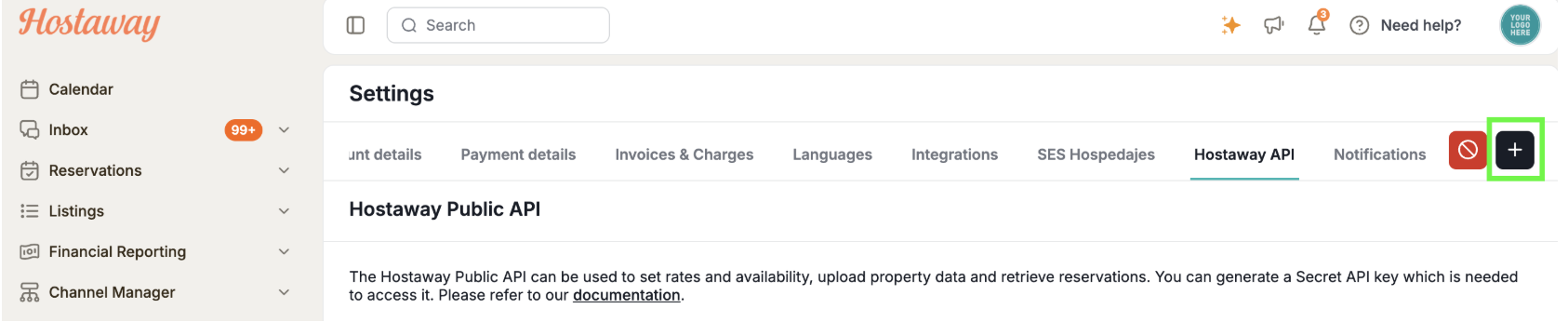
Start a new key. Press the + button at the right of the tabs.
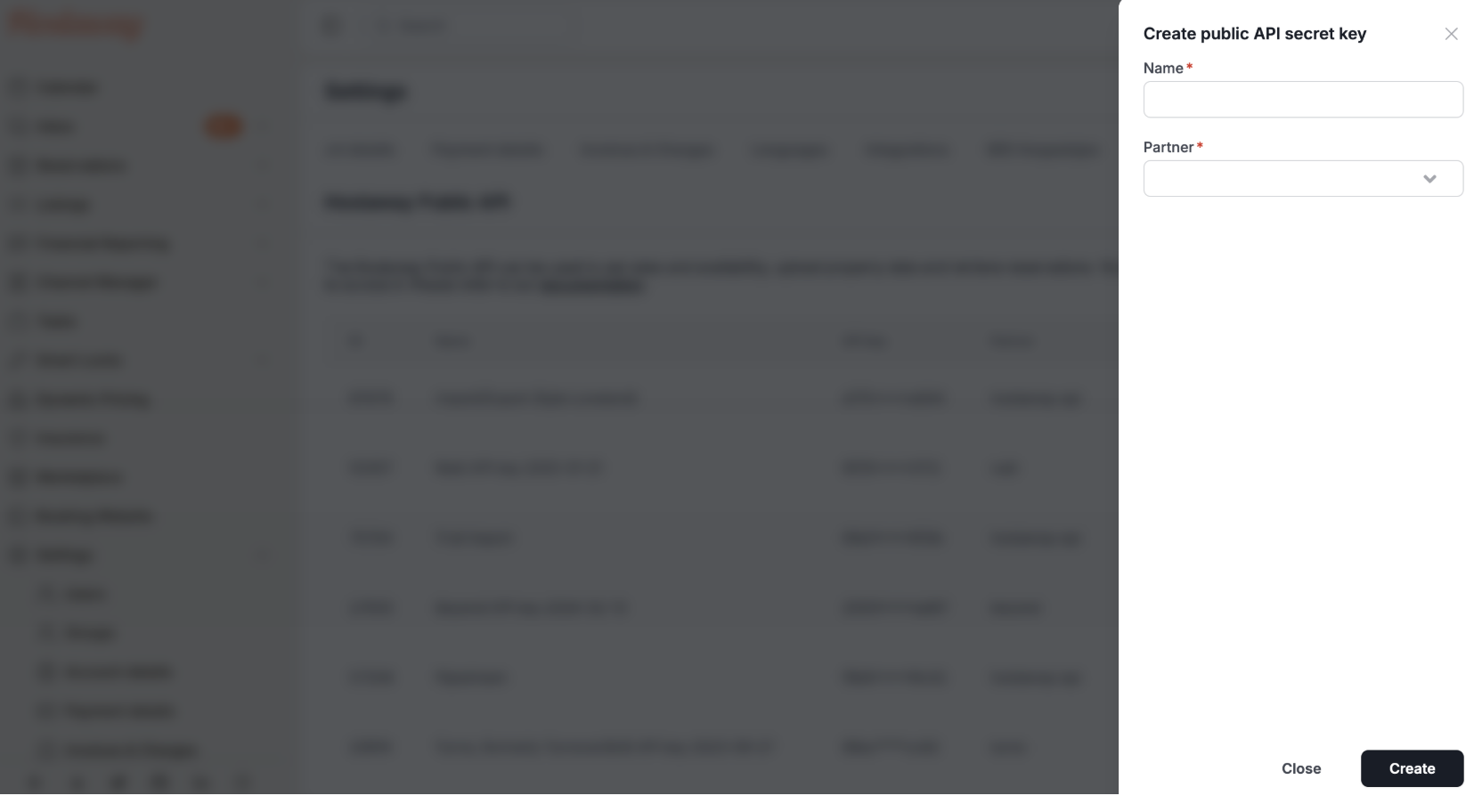
Name it and choose the partner. Hostaway opens Create public API secret key:
- Name: type STR Spark. It only helps you recognise the key later.
- Partner: choose Hostaway Public API. That's Hostaway's option for software that isn't one of its listed partners, which includes STR Spark for now.
Press Create.
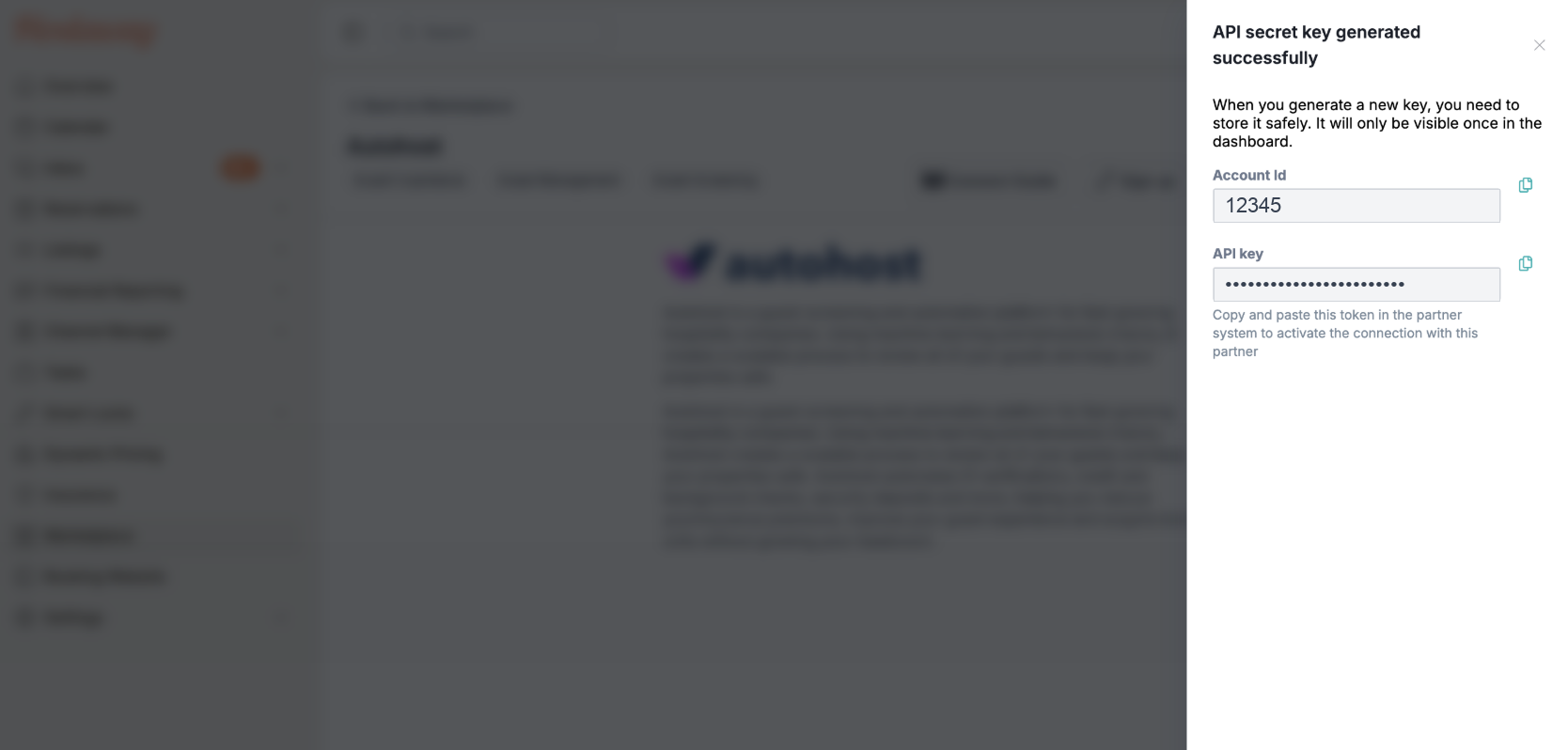
Copy the Account ID and API key. Hostaway shows your Account Id, a number, and your API key, a long string of letters and numbers. Use the copy buttons beside each one. Copy both now: Hostaway shows the API key only once. If you close the panel before copying it, delete that key and create a new one.
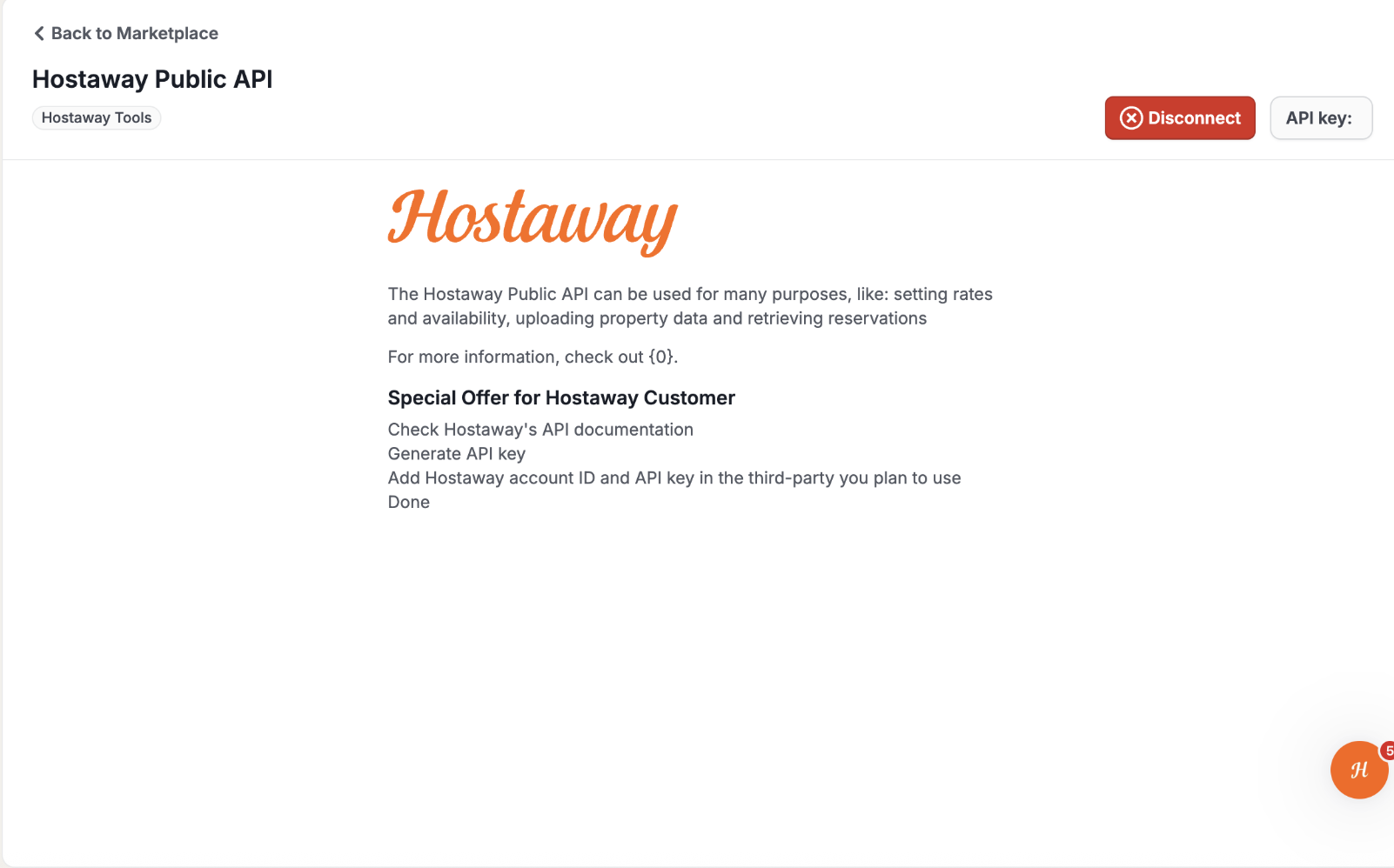
Another way in: in Hostaway's Marketplace, open Hostaway Public API and press API key at the top right. It opens the same panel.
If you ever want to cut STR Spark off, delete the STR Spark key on the Hostaway API tab.
3. Paste the Account ID and API key into STR Spark
Back in STR Spark, paste the Hostaway Account ID and the Hostaway API key into their boxes.
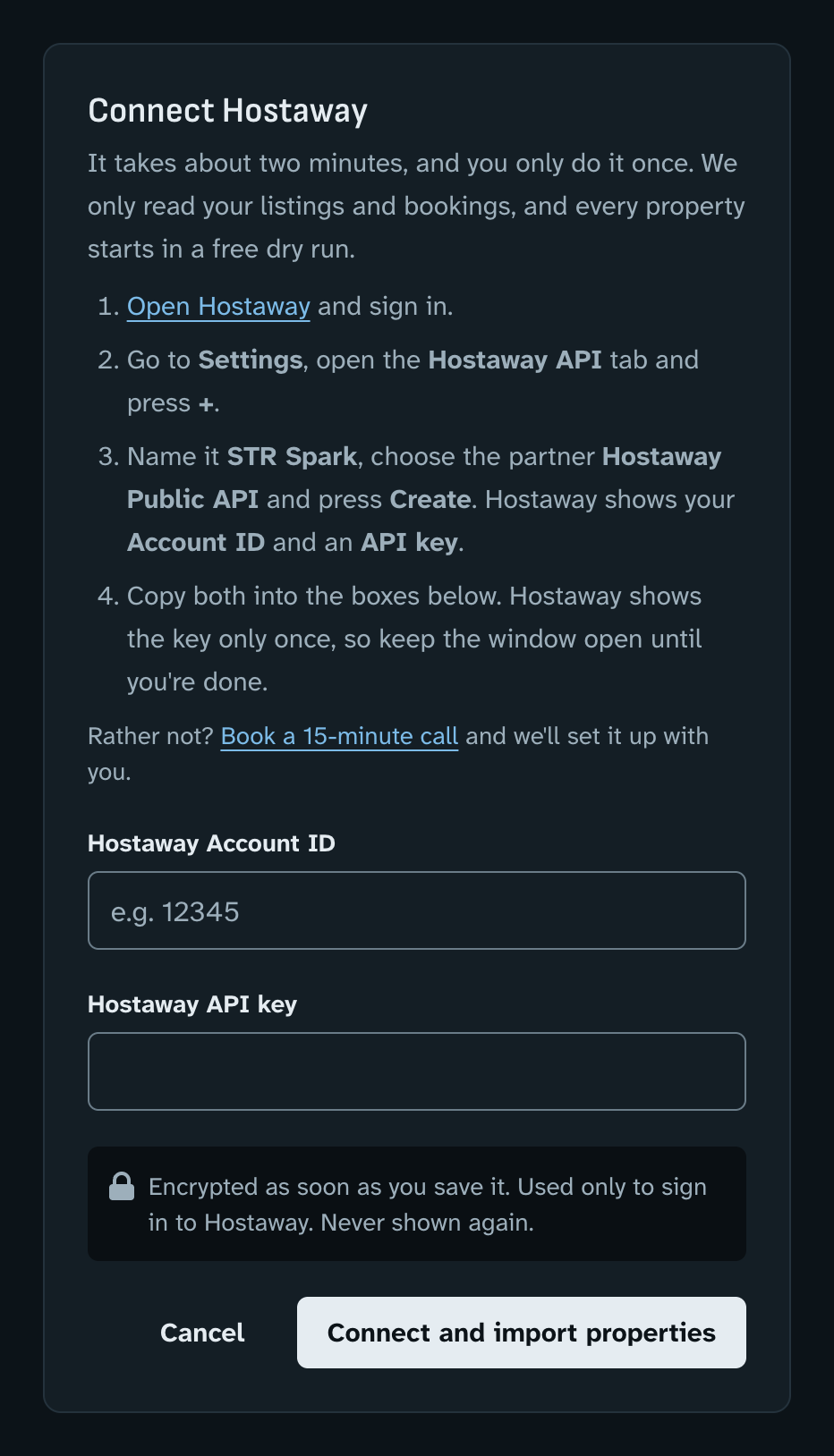
Tip: if you copied both at once, paste everything into the Account ID box. STR Spark splits them for you: the number goes in the Account ID and the long string in the API key.
Press Connect and import properties. STR Spark checks the key with Hostaway, stores it encrypted, and brings in your listings.
If you'd rather not do this yourself, press Book a 15-minute call on the form and we'll set it up with you.
4. Check your properties
You're back on Integrations, and your Hostaway account shows as Connected with the number of properties it brought in. On the Properties page, each Hostaway listing is there with:
- its name and address,
- its timezone,
- its check-in and check-out times, from the listing in Hostaway,
- Hostaway as where its bookings come from.
What STR Spark does with your bookings:
- Counts as a stay: new and changed reservations, and owner stays. The house is warm for the owner too.
- Ignores: inquiries, requests you haven't accepted yet, and declined, expired or cancelled reservations.
- Times: each reservation's own check-in and check-out times when it has them, otherwise the listing's.
- Changes: new bookings, date changes and cancellations are picked up automatically, with nothing for you to do.
Did you add a listing in Hostaway later? On Integrations, press Refresh on your Hostaway account, and the new listing comes in.
STR Spark only reads your listings and reservations. It never messages guests, changes reservations or prices, or touches anything else in Hostaway.
5. Add your devices and turn them on
New properties start in dry run: STR Spark works out what it would do for each booking, but doesn't change any device yet.
- Connect your device account. On Integrations, press Add device account and pick your brand, such as Mysa, Cielo, ControlMySpa or Dreo. Ecobee, Google Nest, Honeywell Home, Sensi and Sensibo are under Ecobee, Honeywell & more. Sign in to that account, and STR Spark finds its devices.
- Link each device to its property. Open Devices, choose a device and pick the property it's in.
- Turn it on. On the device's page, choose a preset (Frugal, Default or Comfy) or set your own temperatures, then switch Enabled on.
From then on, STR Spark sets each device from the property's Hostaway bookings. It warms the place up before check-in, lets guests adjust within your range while they stay, and sets back after checkout. Run Test on a device page any time to see what it would do right now.
If something goes wrong
- "Hostaway did not accept the Account ID and API key." Copy both again from Hostaway. If you can't see the API key any more, delete the STR Spark key in Hostaway and create a new one.
- A listing is missing. Check it's on the same Hostaway account, then press Refresh on your Hostaway account in Integrations.
- You created a new key. On Integrations, press Replace key on your Hostaway account and paste the new Account ID and API key. Your properties and devices stay as they are.
- The key stopped working. STR Spark leaves your devices as they are, emails you, and your Hostaway account on Integrations shows Reconnect. Press it and paste a new key.
Still stuck? Email us or book a call.