What you need
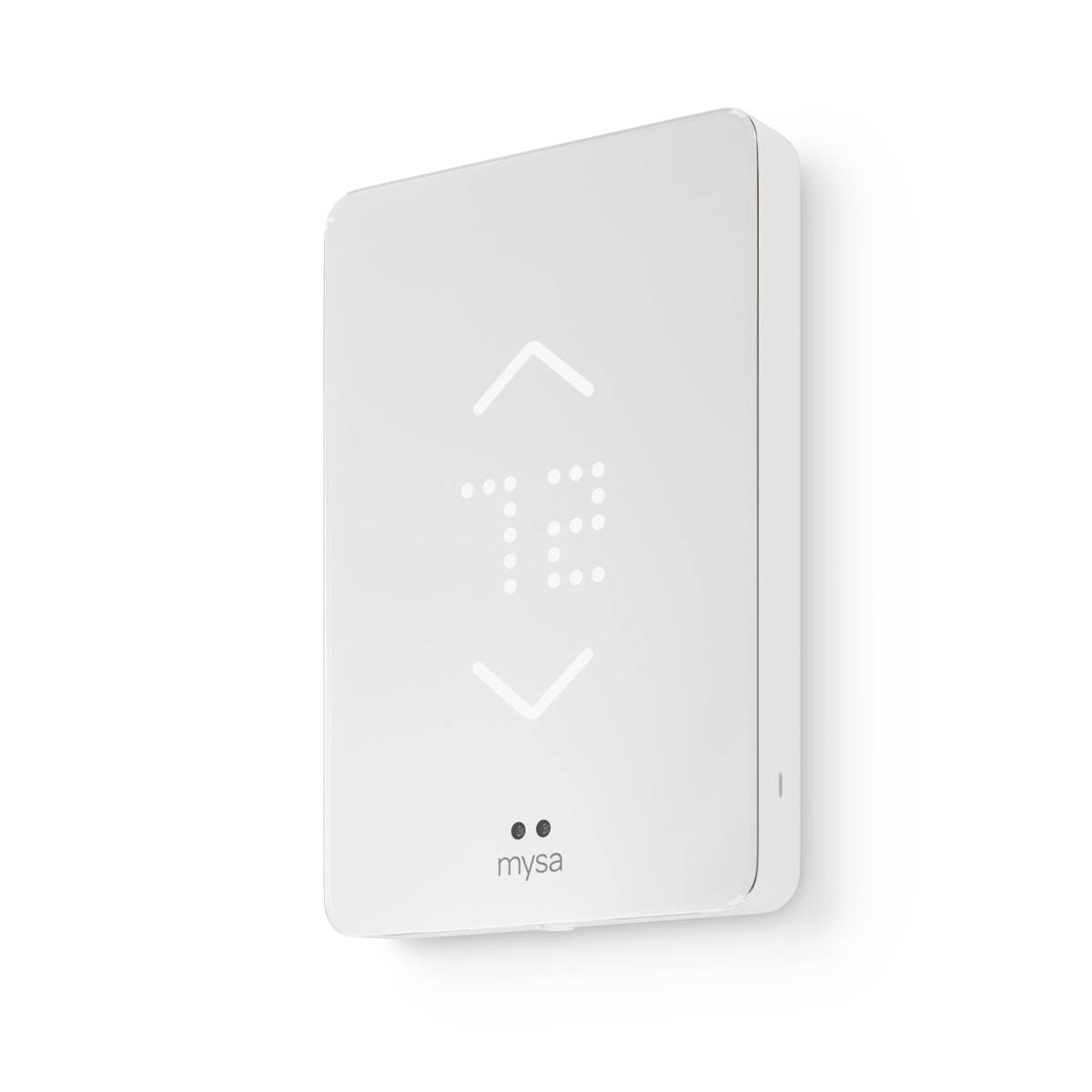
- Mysa thermostats for electric baseboard heaters or in-floor heating, set up in the Mysa app. If you can change their temperature in the app, STR Spark can too.
- The email and password you use in the Mysa app. If someone else's Mysa home is shared with you, its thermostats come in as well.
- An STR Spark account with your property in it. Start a free trial, then import your Hospitable properties or Hostaway listings, or add a property with its iCal calendar link.
Mysa's AC controllers and its thermostat for central heating and cooling show up on Devices too, but STR Spark can't control them yet.
1. Clear the Mysa schedules
A schedule in the Mysa app keeps changing the temperature on its own, and fights STR Spark's settings. In the Mysa app, open each thermostat's Schedule, tap the three dots at the top right and choose Delete Schedule. Turn off any geofencing or Home and Away shortcuts too.
2. Add your Mysa account
Sign in to STR Spark. Choose Integrations in the menu on the left, press Add device account and choose Mysa.
Enter the email and password you use in the Mysa app, then press Connect and find devices. STR Spark stores your login encrypted and uses it only to read and set your thermostats.
Mysa doesn't offer an official connection, so this one is marked beta: STR Spark connects the same way the Mysa app does. It works today, but it can stop if Mysa changes their app. If it does, your thermostats are left as they are, and the account on Integrations shows what went wrong.
3. Link each thermostat to its property
Open Devices. Your thermostats are listed under Mysa, grouped by Mysa home. Each one starts Not linked and not enabled: STR Spark changes nothing until you've linked it and switched it on. In the Property column, pick the property each one is in.
4. Pick a preset and turn it on
Choose a thermostat's name to open its page, then pick a preset:
| Frugal | Default | Comfy | |
|---|---|---|---|
| Warm before check-in | 2 hours | 5 hours | 8 hours |
| Temperature for guests | 69°F | 71°F | 72°F |
| Guests can choose between | 62–72°F | 66–76°F | 68–78°F |
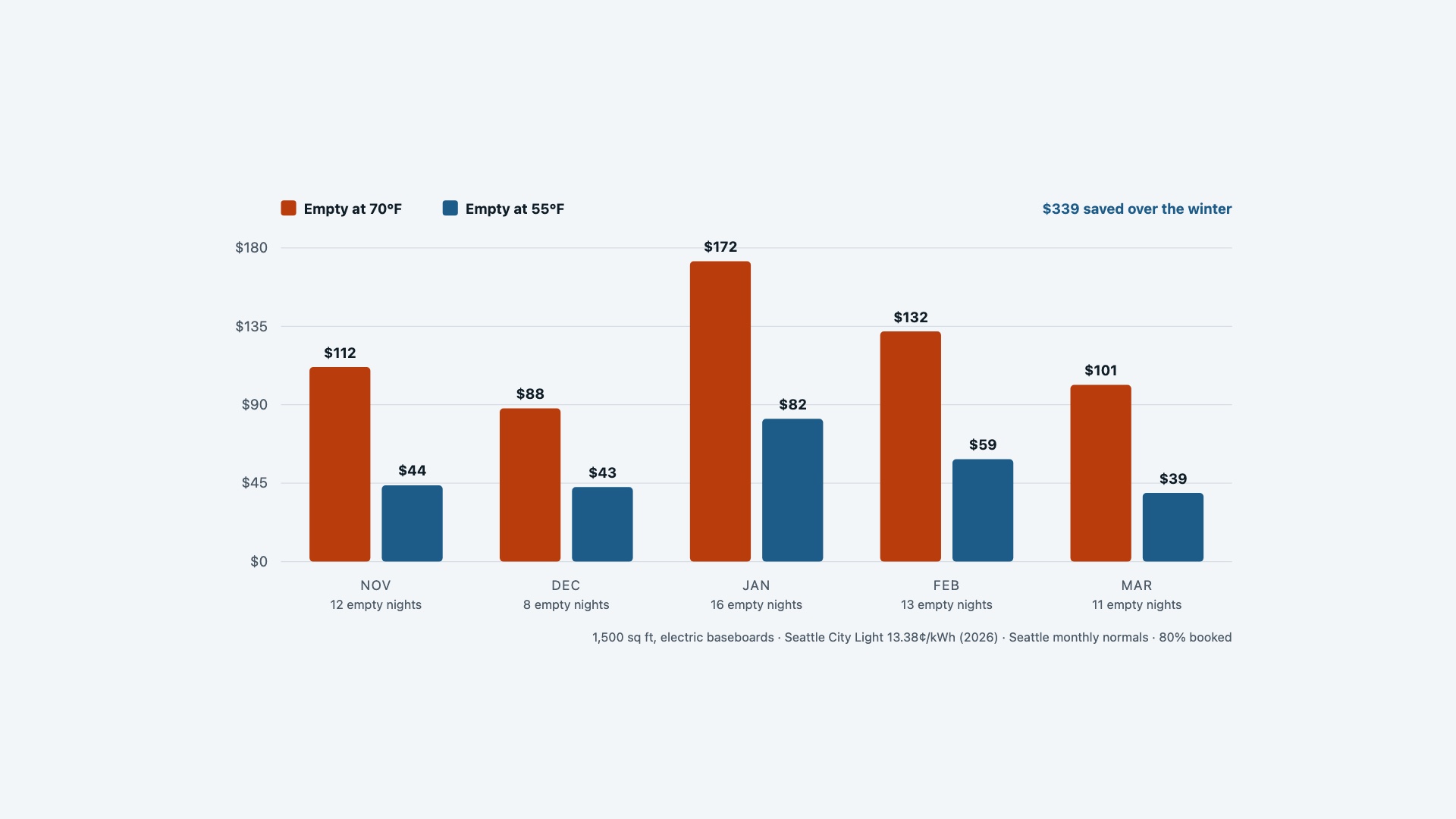
| While the property is empty | 50°F | 55°F | 60°F |
Or choose Custom and set your own. Switch Enabled on and press Save settings. Baseboard rooms warm up slowly, so a larger room may need more time before check-in than the preset gives it.
Press Test on the thermostat's page any time to see what STR Spark would set right now. It changes nothing.
Once a thermostat is enabled, STR Spark warms the room before check-in, keeps a guest's setting while it's within your range, and turns the heat down after checkout. Mysa baseboard thermostats have no frost protection of their own when switched off, so STR Spark holds your empty-property temperature instead of switching them off.
If something goes wrong
- "That didn't work" when connecting. Check that the email and password sign in to the Mysa app on your phone, then try again.
- A thermostat is missing. Make sure it's on the same Mysa account, or shared with it, then press Refresh on your Mysa account in Integrations.
- A thermostat keeps changing on its own. A Mysa schedule, geofencing or a smart-home routine (Alexa, Google Home) is still running. Turn it off in the Mysa app.
- The account shows Reconnect. You may have changed your Mysa password. Press Reconnect and enter the new one.
Still stuck? Email us or book a call.