This works for any Tuya-based plug in Smart Life, not only Feit's.
What you need
- Feit Electric (or other Tuya) Wi-Fi smart plugs, on 2.4 GHz Wi-Fi that reaches them. Outdoor plugs are often far from the router, so check the signal.
- The Smart Life app (or Tuya Smart) on your phone, with an account set to the United States. To check: in the app, tap Me, the settings icon, Account and Security, then Region.
- An STR Spark account with your property in it. Start a free trial, then import your Hospitable properties or Hostaway listings, or add a property with its iCal calendar link.
1. Remove each plug from the Feit Electric app
Tuya only lets STR Spark reach plugs in its own Smart Life or Tuya Smart app, not in the Feit Electric app. In the Feit Electric app, open each plug, tap the edit (pencil) icon at the top right and choose Remove Device. Its schedules and any Alexa or Google links stay behind.
2. Add each plug to Smart Life
Put the plug in pairing mode: hold its button for about 5 seconds, until the blue light blinks quickly. In Smart Life, tap + at the top right, then Add Device, and follow the steps on 2.4 GHz Wi-Fi. Give it a name you'll recognise, such as "Patio lights".
Don't set schedules or timers on these plugs in Smart Life, and delete any you already have. They would switch the plug behind STR Spark's back.
3. Create a free Tuya developer account
Go to platform.tuya.com and sign up. It's free. This is a separate account from your Smart Life login.
4. Create a cloud project
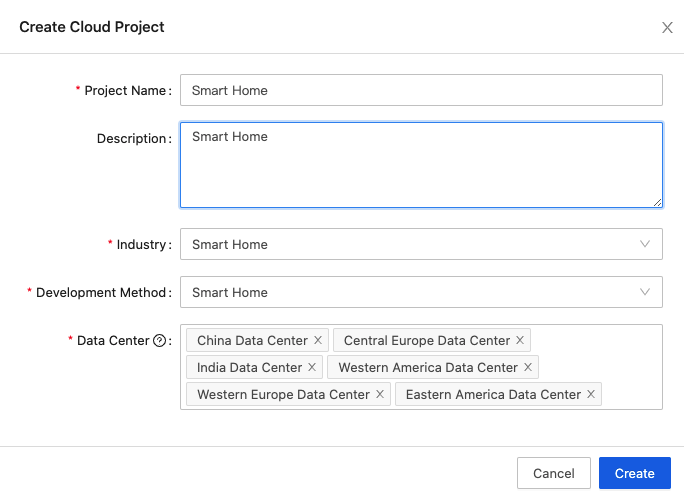
In the menu on the left, choose Cloud, then Development, then press Create Cloud Project. Fill it in:
- Project Name: STR Spark, for example.
- Industry: Smart Home.
- Development Method: Smart Home.
- Data Center: Western America Data Center. It must serve your Smart Life account's region; for a US account it does.
Press Create.
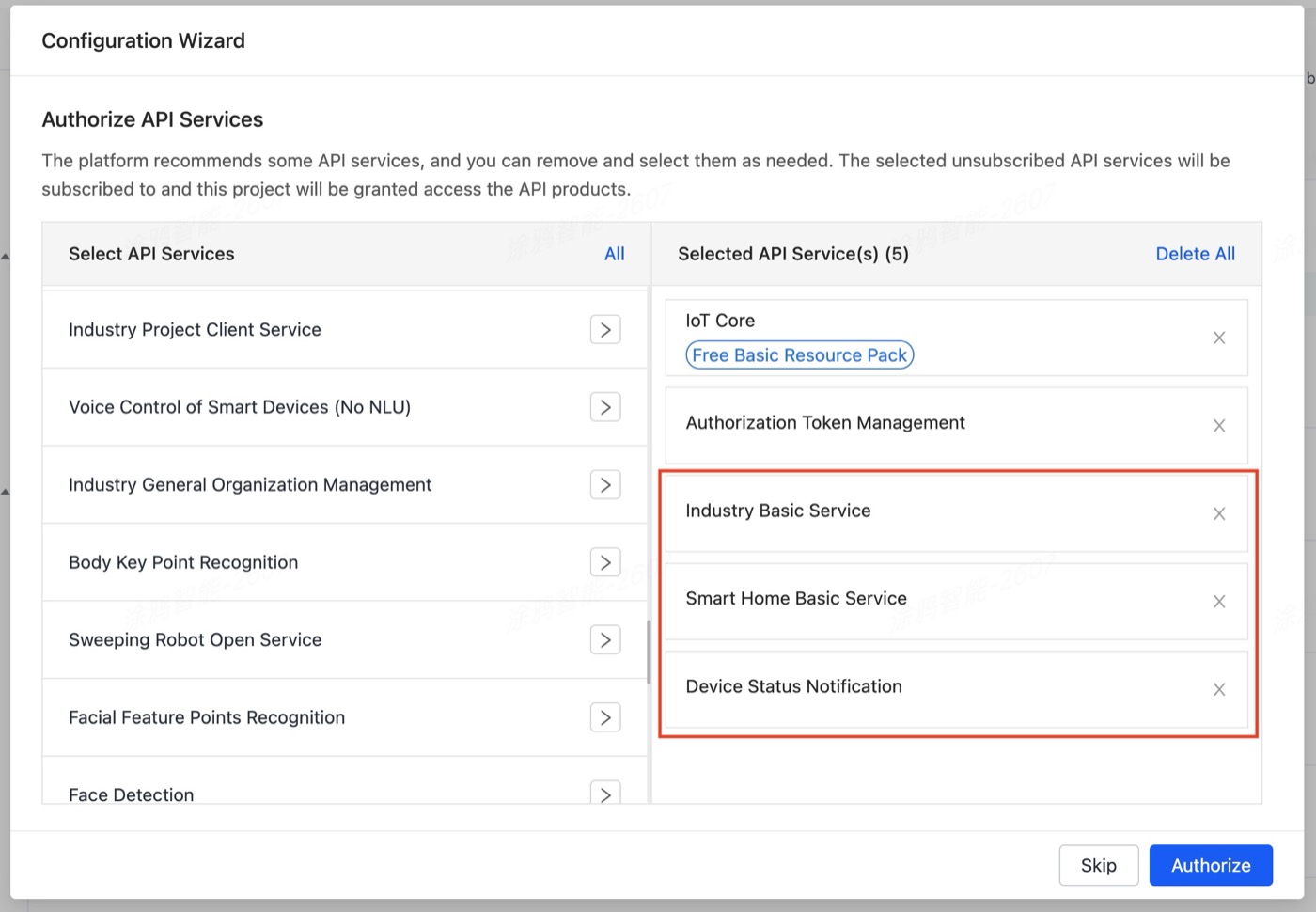
Tuya then asks which API services the project may use. Keep the ones it suggests, including IoT Core, Authorization Token Management and Smart Home Basic Service, and press Authorize.
5. Show the link QR code
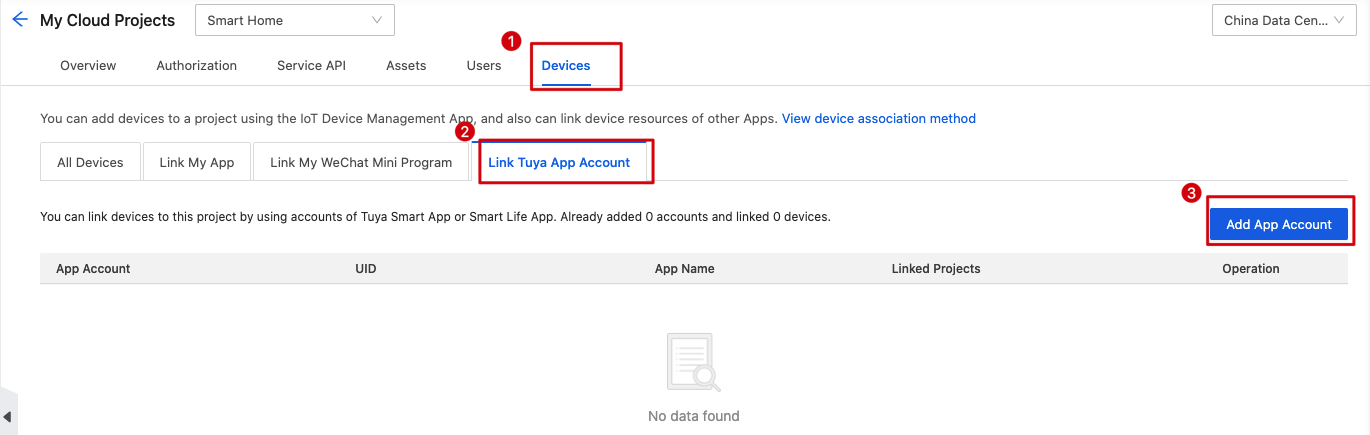
Open the project, choose the Devices tab, then Link Tuya App Account, and press Add App Account. Tuya shows a QR code.
6. Scan it with Smart Life
In Smart Life, tap + at the top right, then Scan, and scan the QR code. Confirm the login in the app. Back on the project's Devices tab, your plugs now appear under All Devices.
7. Copy the Access ID and Access Secret into STR Spark
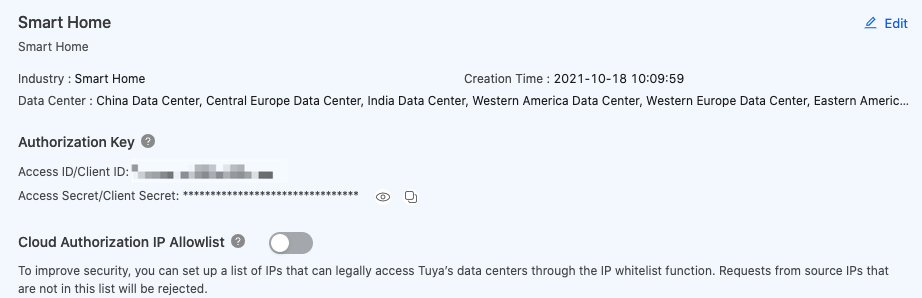
Open the project's Overview. Under Authorization Key, copy the Access ID/Client ID, and press the eye or copy icon beside Access Secret/Client Secret to get the secret.
In STR Spark, choose Integrations in the menu on the left, press Add device account and choose Tuya / Feit Electric. Paste them into Access ID and Access Secret, then press Connect and find devices. STR Spark stores them encrypted.
8. Link each plug and turn it on
Open Devices. Your plugs are listed, each Not linked and not enabled. In the Property column, pick the property each one is in. Then choose a plug's name to open its page.
A plug can't tell what's plugged into it, so you choose what it does:
| Setting | Choices | Starts as |
|---|---|---|
| Switch on before check-in (hours) | 0 to 72 | 2 hours |
| While occupied | Switch on, or Leave as the guest sets it | Switch on |
| Switch back on if a guest turns it off | On or off | On |
| When vacant | Switch off, Keep on, or Leave as it is | Switch off |
- String lights, a fountain or a pond pump: the starting settings suit them: on for guests, off when empty.
- Heat tape or a pipe heater: set When vacant to Keep on. Switching one off in winter risks frozen pipes.
- An outdoor heater or something guests should control: set While occupied to Leave as the guest sets it.
Switch Enabled on and press Save settings. Press Test any time to see what STR Spark would do right now, without changing anything. Other Tuya devices on your account show up too, but only plugs and power strips can be controlled.
If something goes wrong
- "That didn't work" when connecting. Copy the Access ID and Access Secret again from the project's Overview. Check the project uses the Western America Data Center.
- No plugs show up. On platform.tuya.com, check that your Smart Life account is listed under the project's Devices, Link Tuya App Account. If your Smart Life region isn't the United States, the project can't see it.
- The account shows Reconnect after a month or so. Tuya's free project is a trial that runs for about a month, then has to be extended. Extending is free: on platform.tuya.com, open Cloud, find the IoT Core service and ask for an extension. Then press Reconnect in STR Spark.
- A plug shows as offline. It's lost Wi-Fi, or lost power. Outdoor plugs far from the router often need a Wi-Fi extender.
- A plug switches at odd times. A Smart Life schedule, timer or automation is still set on it. Delete it.
Still stuck? Email us or book a call.