What you need
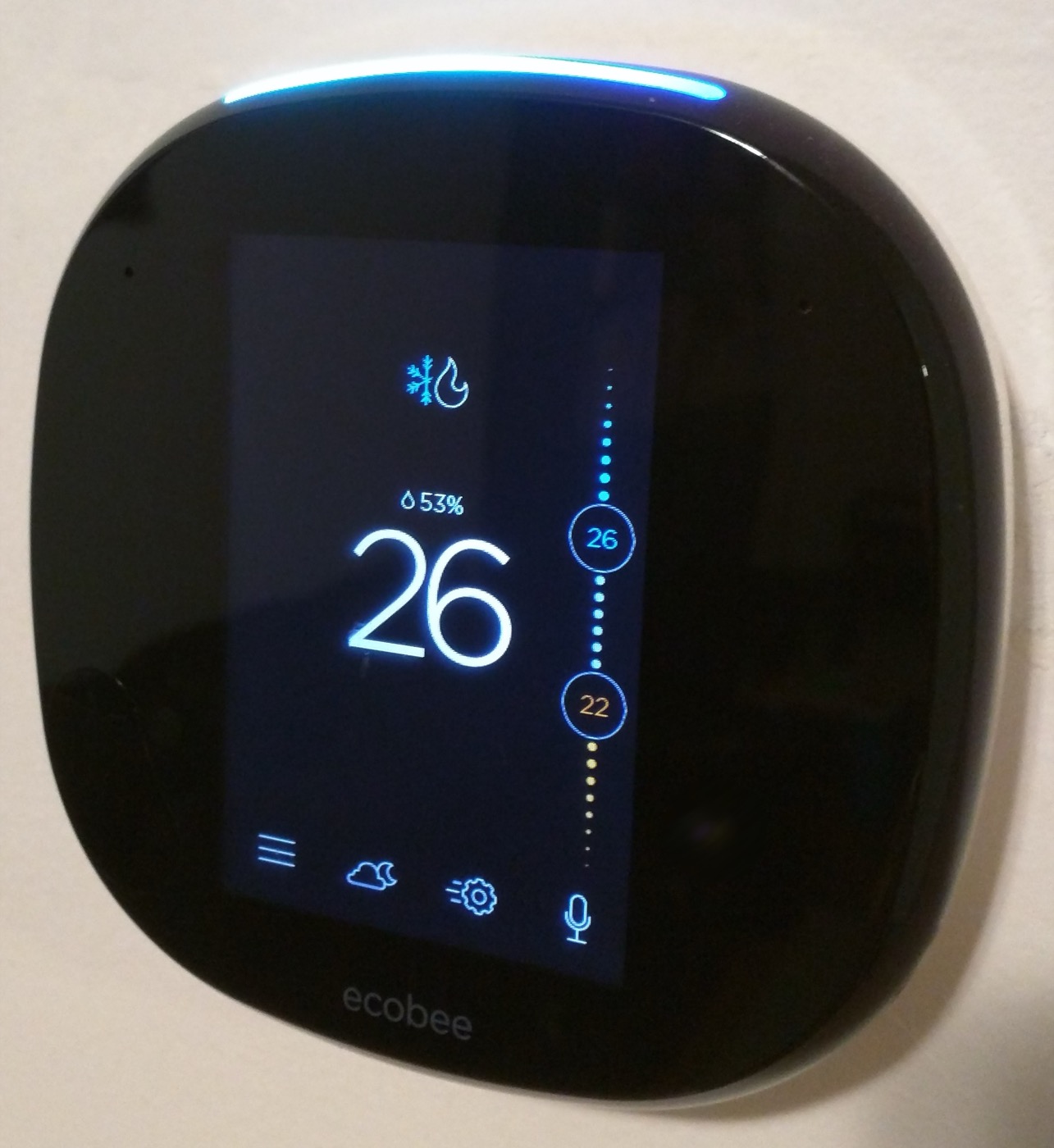
- A thermostat added to the SmartThings app. If you can change its temperature from SmartThings, STR Spark can too. If your thermostat's own brand is also listed on Seam's page (such as ecobee or Honeywell), connecting that brand directly is usually simpler.
- An STR Spark account with your property in it. Start a free trial, then import your Hospitable properties or add each one with its iCal link.
Connect your thermostat
- Open the sign-in. In STR Spark, choose Integrations, press Add device account and choose Ecobee, Honeywell & more. Press Continue to sign in.
- Sign in to SmartThings on Seam's page. Pick SmartThings and sign in with your Samsung account. STR Spark never sees that password: Seam gives us access to that account's thermostats only. Finish in the same browser tab you started in.
- Link each thermostat to its property. You're sent back to STR Spark. Open Devices, and in the Property column pick where each thermostat is. Nothing changes on a thermostat until it's linked and switched on.
- Choose your settings and turn it on. Choose the thermostat's name to open its page. Pick a preset (Frugal, Default or Comfy), or Custom for your own temperatures, switch Enabled on and press Save settings. Press Test any time to see what STR Spark would set right now, without changing anything.
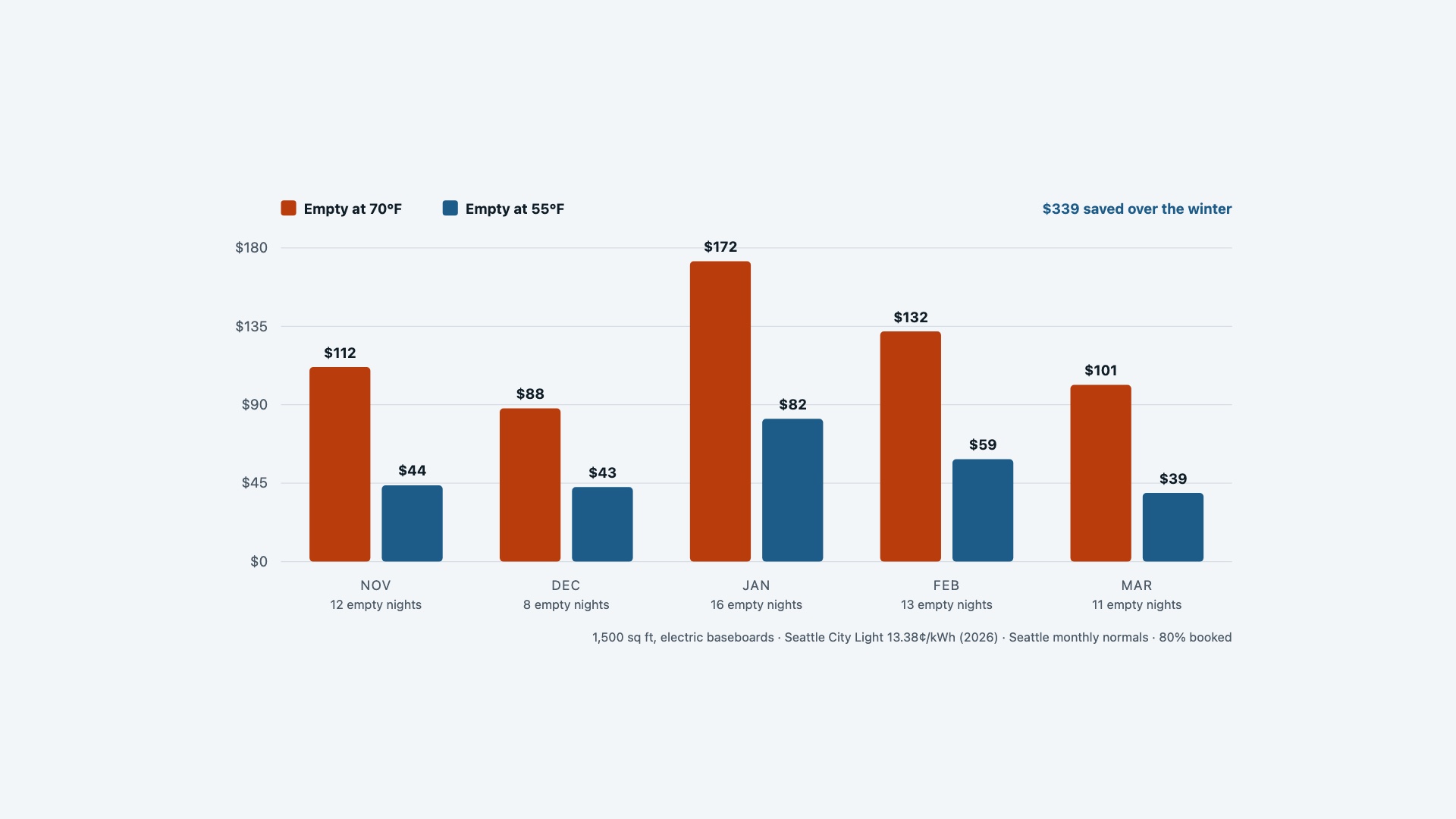
From then on STR Spark warms or cools the place before check-in, lets guests adjust within your range during a stay, and sets back after checkout. In auto mode the heat and cool points stay at least 5°F apart.
Turn off routines and the thermostat's own schedule
- SmartThings routines: in the SmartThings app, open the Routines tab (called Automations in some versions). Open each routine that sets the thermostat, and either take the thermostat out of it or switch the routine to Disabled at the bottom of the screen.
- The thermostat's own schedule: SmartThings passes commands through, but the thermostat may still run a schedule or home/away feature in its maker's app. Turn those off there too. Our ecobee and Honeywell Home guides show how.
If something goes wrong
- A thermostat is missing. Check it's in the same SmartThings location you signed in to, and that you can control it in the app.
- "This sign-in wasn't started in this tab." Start again from Integrations and finish in the same tab.
- The temperature keeps changing back. Look for a routine, or the thermostat's own schedule, that's still on.
- You changed your Samsung password. On Integrations, press Reconnect (or Sign in again) on the account. Your links and settings stay as they are.
Still stuck? Email us or book a call.